01
Getting started
- Download from the download section.
antiDrive-0.1.11-stick.zipis the whole pendrive, ready to unzip. The Windows and Linux archives each hold just that system. - Unzip onto the stick. Put the contents at the root of the pendrive. Your files will go in
Drive/. App data (database, history, models) goes in.antidrive/. - Run the launcher. On Windows, double-click
windows\Run-antiDrive.bat. On Linux, runsh linux/Run-antiDrive.sh. The window opens athttp://127.0.0.1:47321/. If that port is taken, the next free one is used. - Set the password. On first run, name the pendrive and create a password of at least 10 characters. The public link never sees this password or the files.
02
Going online and sharing
Click Go online. In a few seconds you get a public https link and a QR code. Open it in any browser on any device.
- The address changes every time you go online. The previous link stops working.
- The sidebar shows the route that worked, for example
Online · Pinggy. Click it to see and copy the full link. - Tick Go online automatically when antiDrive starts to skip the click next time.
- For an address that doesn't change, run your own relay (
Run-relay.batorsh linux/Run-relay.sh) and enter its address under This pendrive → Advanced: a stable address.
Under This pendrive, compare the fingerprint with the one shown on the other computer. A mismatch means stop.
03
Login security
- Password, set on first run. Change it under This pendrive.
- Authenticator codes. Click Set up authenticator and scan the code with any authenticator app.
- Recovery codes. Generate recovery codes shows them once. Each one unlocks the pendrive a single time, and a new set replaces the old one.
- Passkeys. Add a passkey for this computer lets Touch ID, Windows Hello or a fingerprint unlock the window. A passkey needs an address that stays the same, so it works on this computer or a stable relay address, not on the changing public link. There, use the password and an authenticator code.
- Active sessions. See every signed-in browser and revoke any of them.
Traffic is end-to-end encrypted: files are sealed in the browser and by the program, so the tunnel only carries ciphertext.
04
Working with files
Upload
Click Upload or Folder, or drop files onto the list, from the local window or any device on the link. Big uploads resume where they stopped, and an unfinished upload never shows up as a broken file.
Create any file
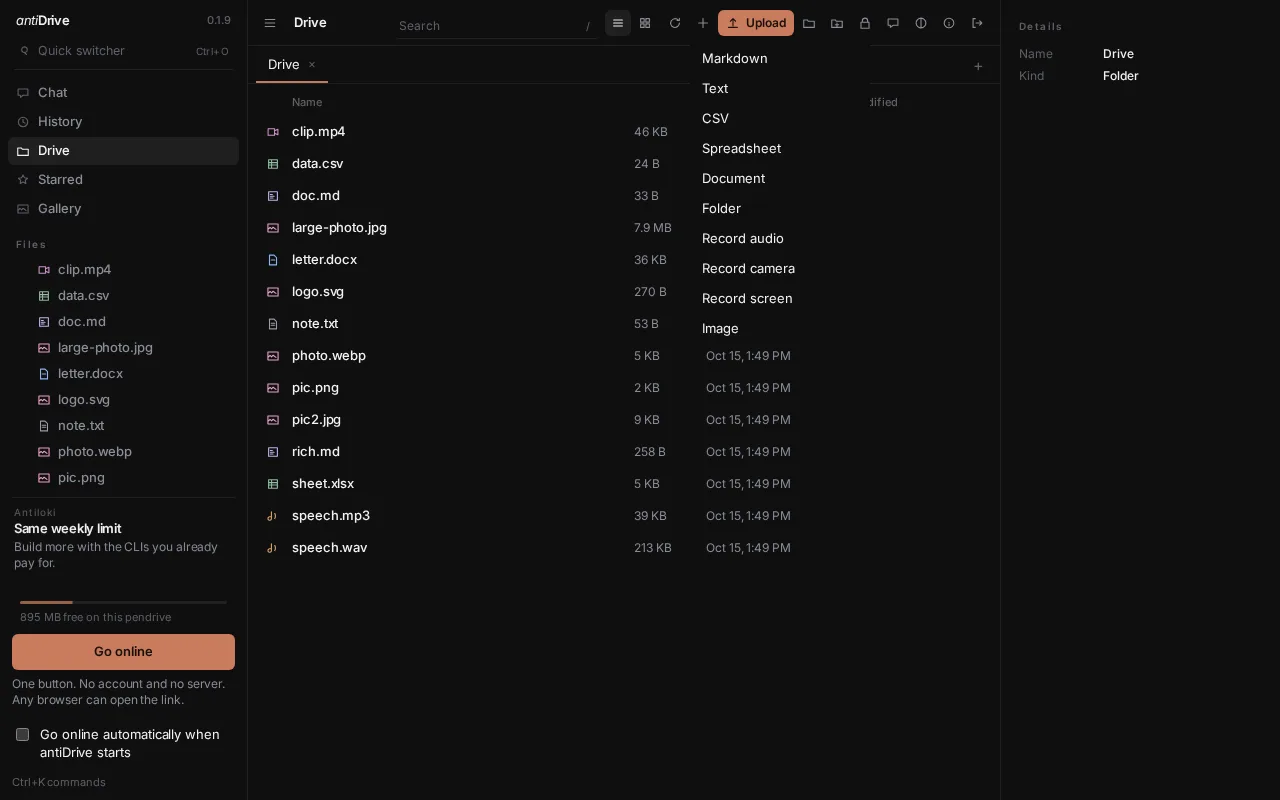
The New menu makes Markdown, Text, CSV, Spreadsheet, Document and Folder. It can also Record audio, Record camera, Record screen, and Image, which opens a sketch pad. New text files are called Note.txt, and new CSV files start with a header row.
Readers and editors
Open a file in a tab. Markdown has Read and Edit views and an outline. Text, docx, CSV and xlsx open in editors, where numbers stay numbers and a docx keeps its styles. Google Docs files need exporting as docx first. Every save keeps the previous version.
Player
Audio and video play in a bar at the bottom, with seeking, locally or over the link.
Gallery and lightbox
Gallery shows every image. Click one to open the lightbox: use the arrow keys or the ‹ › buttons to move, and the wheel or + and − to zoom.
Find things
Use the file tree, tabs, Ctrl+O for the quick switcher, Ctrl+K for commands, and the search box, which finds words inside files as well as names (locked vaults are left out). Starred collects the files you starred.
Look
Under Theme, pick one of ten themes. Each file type has its own colored icon.
05
Transcription
Open a WAV file and click Transcribe. It runs on your own computer, inside antiDrive, and gives the same text every time. The first run downloads the speech model into .antidrive/models/. Export the result as VTT or SRT.
06
Local AI: summaries, Chat and selection
antiDrive’s AI runs on the computer the stick is plugged into, on the CPU. It needs no account and no API key, and it is read-only: it never edits, moves, renames or deletes a file.
- Open This pendrive → Snapshots and click Download Qwen3 0.6B Instruct. The weights (378 MB, plus an 87 MB search model) go onto the stick once.
- That's it. A command-line AI under CLI stays optional.
Hover summaries
Hover a file to see a preview card with a short summary and tags. Summaries are saved in SQLite and made again only when the file changes.
Chat
Chat is Ask only. It searches and reads the files on the stick and answers from them. Locked vaults are left out. If you ask it to change something, it tells you it can't.
Selection popover
In the editor, select text to get Explain, Expand, Simplify, Summarize or Translate. The answer stays out of the document; click Copy to use it.
07
Vaults and encryption at rest
New vault creates a folder with its own password. Its names and contents are sealed on the stick. While locked, it's hidden from search and from Chat. Lock now locks it again. There is no recovery if a vault password is lost.
This pendrive → Files at rest can also seal ordinary files with the drive password. It's off by default, so files on the stick stay readable.
08
History and restore
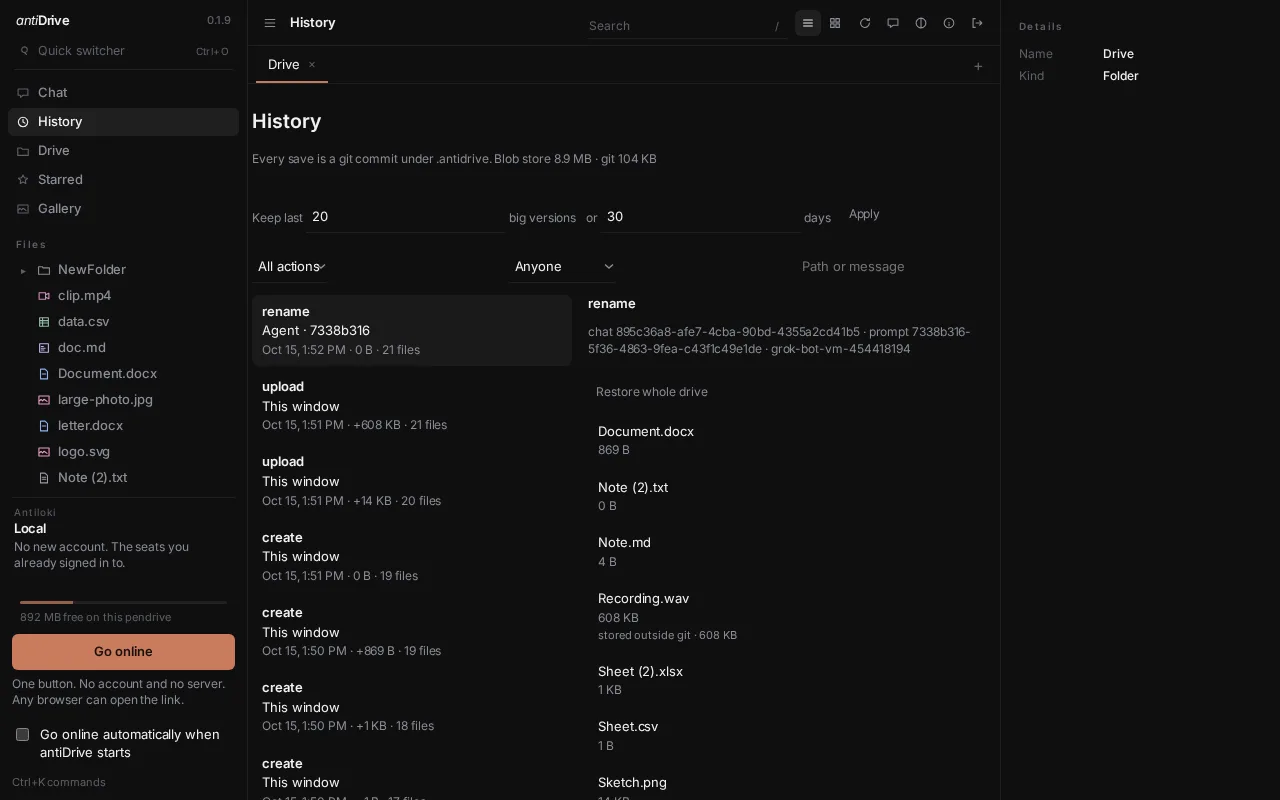
Every save, upload, rename, move and delete is a git commit under .antidrive, tagged with who did it: this window, a public session, or a backup restore. Large files are stored outside git and marked stored outside git.
- Open History and click a commit to see its files.
- Restore this version brings back one file. Restore whole drive rolls everything back to that point, and the rollback is itself a new commit.
- Keep last N big versions or N days controls how much large-file history is kept.
09
Backup
Under This pendrive → Backup, pick a destination folder on this computer or another drive. Click Backup now, or set a Schedule (every N hours, daily at a time, or a five-field schedule). Restore copies the files back onto the stick. Vault files stay sealed in the backup.
10
Troubleshooting
The stick won't run programs (noexec, FAT32, exFAT)
Start it with sh linux/Run-antiDrive.sh. If the stick can't run programs itself, the launcher copies the program to a temporary folder on the computer and runs it from there. Your files stay on the stick.
Go online is slow or uses another route
Go online tries Cloudflare over QUIC, then HTTP/2. If those are blocked, it tries Pinggy on port 443, then localhost.run on port 22. Both use the SSH built into antiDrive, not one installed on the computer. A Pinggy link asks the first visit to continue; refresh if that page stays up. If every route fails, click Retry or use another network.
HEIC photos don't preview
HEIC conversion uses ffmpeg installed on the computer. Install ffmpeg and open the photo again.
Transcribe does nothing for my file
Transcription takes WAV files. Convert other audio to WAV first. A recording made with Record audio is already a WAV.
Test AI fails
Sign in with that command-line tool on this computer, then test again. A tool listed as not installed isn't on this computer's PATH.
11
FAQ
Does anything get installed?
No. Two programs run from the stick, antidrive and antidrive-relay, both written in Rust.
Can the tunnel read my files?
No. It carries only end-to-end encrypted data.
What happens if I unplug the stick?
The drive goes offline. The link works again the next time you start antiDrive and go online, at a new address.
Does it cost anything?
No. antiDrive needs no account and no server. AI features use a command-line tool you already have.
Can several people edit at once?
Not live. Every save is recorded in History, so nothing is lost.
Is it stable?
It's an alpha, 0.1.11. Keep a backup.